FlinkISO separates application administration, form design and day-to-day record access. Roles allow actions, while document sharing and table permissions determine which documents and records a user can work with. Super User is a separate form-building capability, not a Super Admin role.
Admin and Super User are separate roles
Administrators manage users and application access. Only users explicitly marked as Super User can create or re-create application forms through the Form Creation API, whether they use the manual builder or Form Creation AI. An Admin is not automatically a Super User, and a Super User does not automatically become an Admin.
| Capability | Regular user | Admin without Super User | Super User |
|---|---|---|---|
| Grant or remove Super User | No | Yes | Only if also an Admin |
| Create forms using the manual builder or API | No | No | Yes |
| Re-create an existing form | No | No | Yes, after unlocking it with its form password |
| Use Form Creation AI | No | No | Yes |
| Use General Chat and FlinkISO Help AI | Yes, when AI is enabled | Yes, when AI is enabled | Yes, when AI is enabled |
Record-level Add, View, Edit and Approve permissions are separate from form-building access. Permission to enter or edit records does not grant permission to change the form definition.
Assign or remove Super User
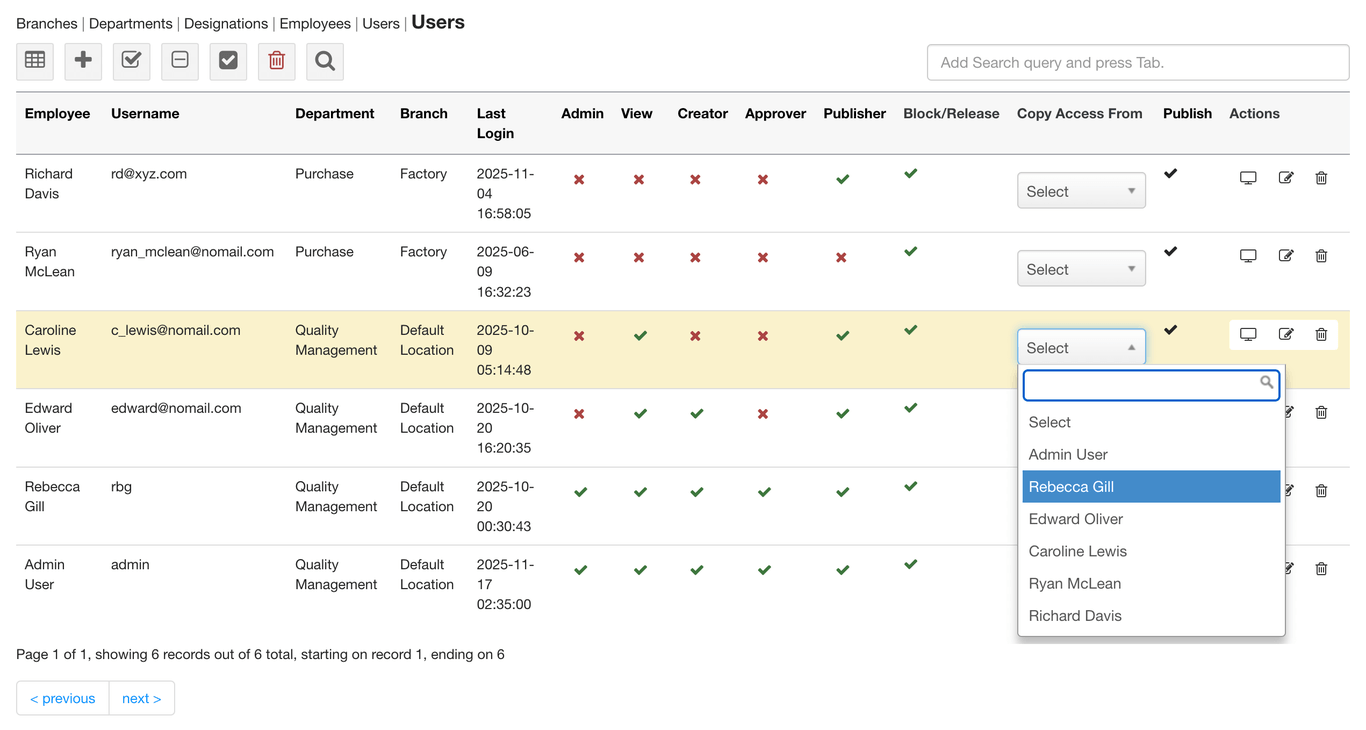
- Sign in as an Admin and open Users.
- Find the user and use the Super User column. A green check means enabled; a red cross means disabled. Select the icon to change the setting.
- Alternatively, open the user’s Edit page, change the Super User checkbox and save.
- Grant the role only to people responsible for form design. Remove it when they no longer need to create or re-create forms.
Re-create forms created by another user
Any Super User who knows a form’s password can unlock and Re-create that form, even when someone else originally created it. This changes the form definition, not an individual data record. Super User access does not bypass the form password.
The same role and password requirements apply when changing an existing form with AI. For manual form-building steps, see Build a Custom Form.
AI access
When AI is enabled and a provider is configured, signed-in users can use Chat for general assistance and FlinkISO for application help. These modes do not create or re-create forms. Only Super Users see and can use Forms mode for Form Creation AI.
AI availability does not replace document sharing or table permissions. A regular user’s help context remains limited to the forms and documents they can access. See AI Setup and AI Form Builder for configuration and form-building guidance.
Document access
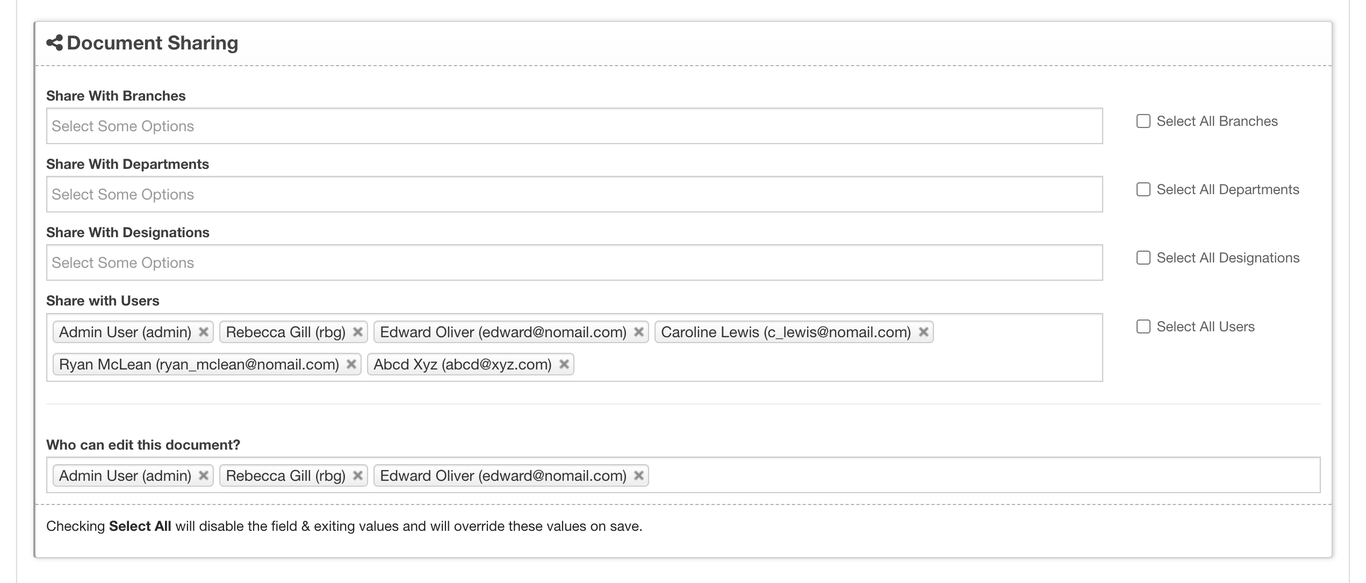
Use the document access controls to share by location or branch, department, designation or individual user. These choices affect the document and the generated form that belongs to it.
Custom table permissions
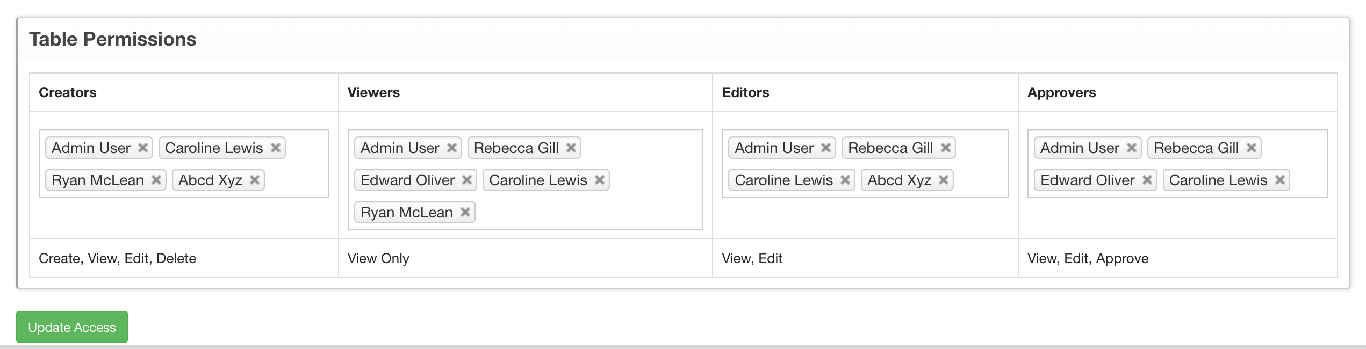
Use the table access controls to choose who can Add, View, Edit or Approve records. Selecting Add also selects View and Edit; removing Add removes those dependent selections. Selecting Edit also selects View. Removing Edit clears View when no other dependent permission remains. View can also be granted on its own, while Approver is independent.
These permissions control records in an existing table. They do not grant the Super User capability needed to create or re-create the form itself.
Copy an access profile
When two users have the same responsibility, use the access-copy tool to reproduce an existing access profile, then review the copied settings. Review the Super User flag separately in Users; do not assume that copying document or table access grants form-building access.