Process FMEA
Use one record to analyse a failure mode at a defined manufacturing step and connect it to controls and follow-up actions.
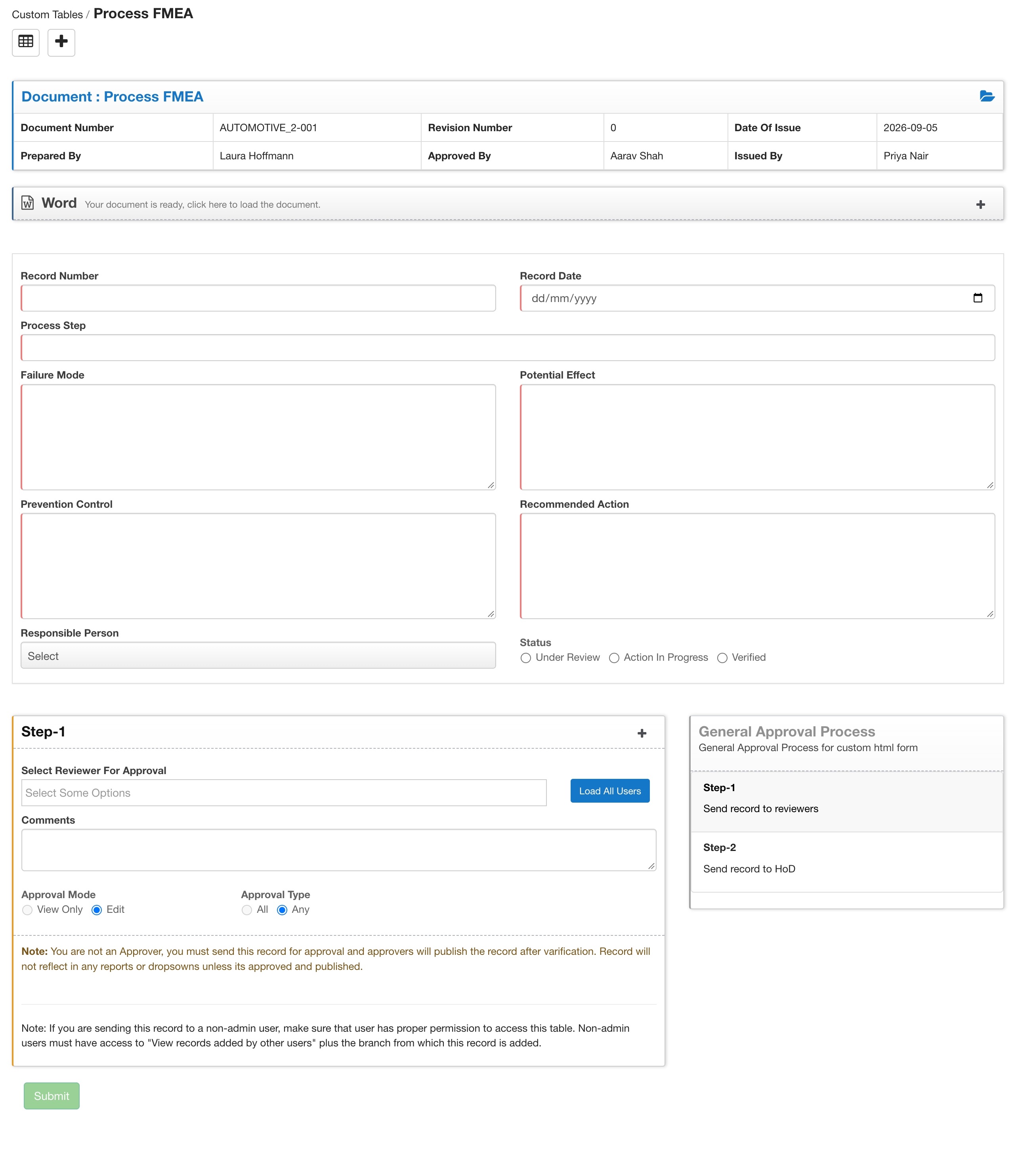
Workflow
- Describe how the step can fail. Enter the Process Step and Failure Mode as a specific way the operation can fail. Describe the Potential Effect separately, including the downstream result a customer or next operation could experience.
- Review current prevention. Record the Prevention Control used at the step and reference the supporting instruction or control plan where relevant. Use your fuller FMEA record for analyses or ratings not captured by this form.
- Assign the recommended action. Document the Recommended Action, select the Responsible Person and update Status after checking the change. Review the relevant Manufacturing Control Plan if the control or reaction changes.
Do more
Use or configure these features in your installed FlinkISO application, according to your permissions. You can also re-create forms using the FlinkISO Form Builder to change labels, add or remove fields, rearrange or resize them, set default values, mark fields as required, and link fields to other records.
Configure email triggers
Send emails when a record is created or edited. Trigger an email when a radio field changes to a selected value. Schedule reminders against a date field.
Read MoreCreate and assign tasks automatically
In Create Tasks, choose the employee or user field for the assignee, a radio field and value for the condition, and a date field for the due date.
Read MoreDefine an approval process and steps
Set the review steps and approvers, then assign the approval process to this form.
Read MoreExport a record as PDF
Open a saved record and choose Download PDF to export a digitally signed, password-protected copy.
Read MoreCreate a custom PDF template
Choose which form fields appear in the PDF and how they’re laid out.
Read MoreExport form data
Export records for analysis outside FlinkISO.
Read MoreReview record history
Review record changes and approvals in the audit trail.
Read MoreConfigure tabs and linked forms
Arrange fields into tabs and make linked forms available in context.
Read MoreSet field editing rules
Control who can edit individual fields and apply approval-step rules where needed.
Read More
Standards and clauses
- IATF 16949:2016 · Clause 6.1